Visualizing Solid Figures 4

Volume by the method of “Cylindrical Shells”

Shells 3

Today I will show you how to visualize the cylindrical shells used in computing the volume using Winplot.

Winplot is a free program. Click here for Winplot and here for Winplot for Macs.

For the example I will use the same situation as in the last post. This was an AP question from 2006 AB1 / BC 1. In part (c) students were asked to find the volume of the solid figure formed when the region between the graphs of  y = ln(x) and y = x – 2 is revolved around the y-axis. This can be done by the washer method, but some students use the method of cylindrical shells. We found that the graphs intersect at x = 0.15859 and x = 3.14619.

Begin as before by graphing the two functions and the vertical segment joining them.

  • In Winplot open a 2D window, click on Equa > 1. Explicit and enter the first equation. Click the “lock interval” box and enter 0.159 for the “low x,” and 3.146 for the “high x,” choose a color and click “ok.”
  • Repeat this for the second equation.
  • Then return to Equa > Segment > (x,y) and enter the endpoints of the vertical segment joining the graphs: x1 = B, y1 = ln(B), x2 = B, and y2 = B – 2. Choose a color and click “ok.”
  • Click Anim > individual > B to open a slider box for B. Type 0.159 and click “set L” and then type 3.146 and click “set R.” Use this slider to move the thin Riemann sum rectangle across the region.

Next draw the 3D graphs:

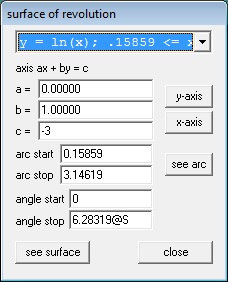
  • Click One > Revolve Surface. The equations will appear in the drop-down box at the top of the window. Graphs are revolved one at a time. For the first graph click the “y-axis” button to put the correct values for a, b, and c in the boxes. In the “arc start” box type 0.159 and in the “arc stop” box type 3.146, the ends of the interval.  In the “angle stop” box type 2pi@S.  (S for surface.) See the figure below. Click “see surface.”
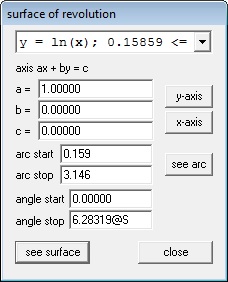
Solid 4 A


  • Repeat this by selecting the second function from the drop-down box. Leave all the values the same and click enter. The two surfaces will be graphed in the same color as the corresponding functions in the 2D set up.
  • Repeat this for the segment, but change the 2p@S in “arc stop” box to 2p@R. (R for Riemann rectangle.) Click “see surface.”
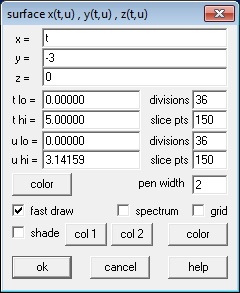
  • You will need to make one adjustment at this point. In the 3D Inventory list choose the segment and click “edit.” In the box change “low t” to 0 and the “high t” to 1. See the next figure.

Solid 4 B

  • In the 3D window, click Anim > Individual and open slider boxes for B, R, and S.
  •                 In the B box enter 0.159 and click “set L” and enter 3.146 and click “set R.” These are the endpoints.
  •                 In the S box make “set L” = -2pi. “Set R” should already be 2pi. Then type 0 and Enter.
  •                 The R box should open with “set L” = 0 and “Set R” = 2pi. no changes are necessary.
  • Move first the B slider, then the R slider, then the B slider again and finally the S slider to explore the situation.
  • Type Ctrl+A to show the axes. Use the 4 arrow keys to move the figure around, and the page up and page down keys to zoom in and out.

That should do it.

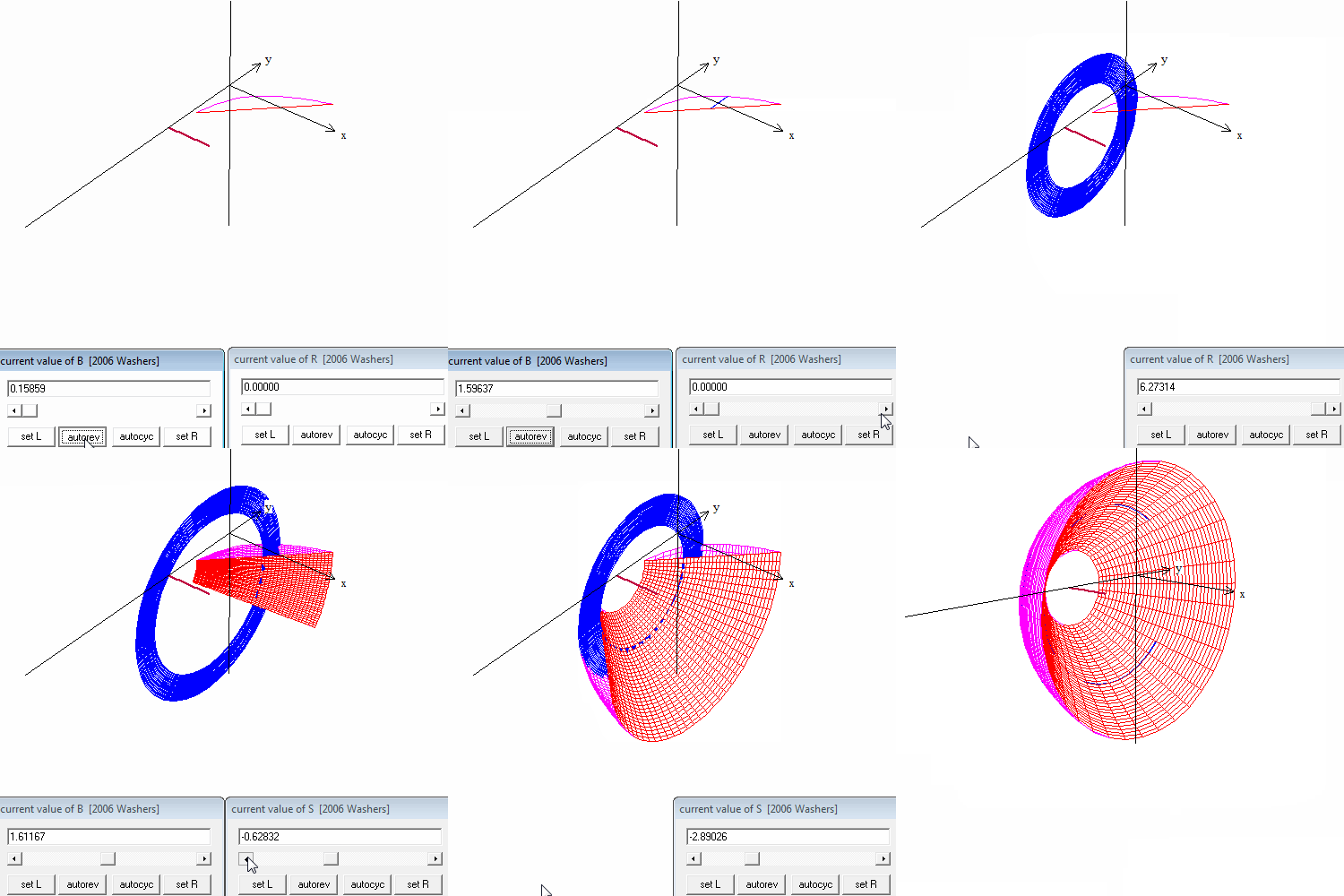
In the video above you will see

  • The Riemann rectangle moving in the plane using the B slider.
  • The Riemann rectangle rotated around the y-axis using the R slider.
  • The shell moving through the curves using the B slider again.
  • The two curves rotated part way using the S slider.
  • The shell moving through the solid using the B slider.

The next and last post in  this series will be a question to see if you understand how the washer method and the cylindrical shell method work in a real situation.

 Update:One of my favorite post is Difficult Problems and Why We Like Them from June 10, 2013. In it I mention a sculpture called  Kryptos located at CIA headquarters in Langley, Virginia. The sculpture contains four enciphered messages. Only three of these have been deciphered since the sculpture was erected in 1990. The sculptor has offered a second clue to the fourth message. I’ve added links story and clues in the original post; see if you can decipher the fourth part.

kryptos 2

Visualizing Solid Figures 3

Volume by “Washers”Washers 3

Today I will show you how to visualize not just the solid figures but the disks and washers used in computing the volume using Winplot. The next post will show how to draw shells.

Winplot is a free program. Click here for Winplot and here for Winplot for Macs.

For the example we’ll use the situations from the 2006 AP calculus exams question AB1 / BC 1. The students were given the region between the graphs of y = ln(x)  and yx -2. In the first part they were asked to find the area of the region. To do that they first had to determine, using their calculator, where the curves intersect. The x-coordinates of the intersections  are x = 0.15859 and x = 3.14619.

In part (b) they were asked to find the volume of the solid formed when the region was rotated around the horizontal line y = -3 . The volume is found by using the disk/washer method. Here is how to show the washers using Winplot. This gets a little complicated so I will mark each step with a bullet

  • Starting in the 2D window, graph the two functions as shown in the previous post.. When entering the equations click the “lock interval” box and enter 0.159 for “low x” and 3.146 for “high x.”
  • Next we will enter a Riemann sum rectangle which we will be able to move, and, once rotated, will appear as the washer. Go to Equa > Segment > (x,y) and in the box enter the endpoints of the vertical segment between the two graphs in terms of B: x1 = B, y1 = ln(B), x2 = B, and y2 = B – 2. Click “ok.”
  • Go to the Anim button, choose “B” (Anim > Individual  > B).
  • Enter the left value 0.15859 and click “set L”, and enter 3.14619 and click “set R.” (Remember how to do this, as we will do it again.)
  • You may now move the “Riemann rectangle” (which, of course, is very thin, approaching 0) across the region.


Next we will produce the 3D images.

  • As we did in the last post click on One > Revolve surface… Enter the values shown below. (The “arc start” and “arc stop” value are the x-values of the intersection points. Attach an “@S” to the “angle stop” as shown.)

Solid 3 B

  • Click “see surface.”
  • In the 3D window that appears click Anim > S and you will be able to revolve the curve. Make the “set L” value -2pi by typing the value in the box and clicking “set L,” leave “set R” at 2pi. Adjust the value to 0 by typing 0 and “enter.”
  • Adjust the viewing widow with the 4 arrow keys and the Page Up and Page down keys. Add the axes with Ctrl+A.
  • Return to the “surface of revolution” window and choose the second function from the drop-down box at the top. not change anything else. Click “see surface” and the second curve will be added to the graph.

Next we graph the “washer:”

  • In the surface of revolution box, select the segment in the drop-down box at the top change the “angle stop” to 2pi@R. Click “ok.”
  • Then in the 3D Inventory window for this file select the segment and click “edit.”
  • Change the “low t” value to 0 and the “high t” value to 1. Change the “u hi” to 2pi@R. Click “ok.” The window should look like the one below.

Solid 3 C 2

Finally, in the 3D window:

  • To show the line y = –3, in the 3D window go to Equa > 2. Parametric and enter the values shown in the box below and click “ok.” A short segment at y = -3 will appear in the 3D window.Solid 3 D
  • In the 3D window go to Anim > Individual and open a slider for “B” and for “R.”
  • For the “B” slider make “set L” = 0.15859 and the “set R” to 3.14619 (the intersection values).
  • For the “R” slide make “set L” to 0 and “set R” to 2pi.
  • Adjust the R and S sliders to 0 and the B slider to its minimum value.
  • Save everything just to be safe. The extension will be “.wp3.” Later you can open this file from the 3D window, but it will no longer be in touch with the 2D window even if you save that.

That should do it.

Move first the B slider, then the R slider, then the B slider again and finally the S slider to explore the situation.

In the video at the top you will see this example with these things happening in order.

  • The Riemann rectangle moving in the plane using the B slider
  • The Riemann rectangle rotated into a washer using the R slider.
  • The washer moving through the curves using the B slider again.
  • The two curves rotated part way using the S slider
  • The washer moving through the solid using the B slider.
  • The solid rotated with the 4 arrow keys.

The next post will show how to do a similar animation for the cylindrical shell method.

Visualizing Solid Figures 2

You have probably caught on by now that Winplot is my favorite computer graphing program. In addition to being great at drawing quick graphs, it is able to produce and rotate 3D images of, among other things, solids of rotation, and solids with regular cross-sections. In this post I will discuss how to do solids of regular cross-section and solids of rotation. In my next posts I’ll show you how to see the disks, washers, and shells.

Winplot is a free program. Click here for Winplot for PC and here for Winplot for Macs. (May 11, 2017 Note: Winplot is no longer available from its original home. The link for PCs above connect to another site where the program can be downloaded. For Macs use the PC link, but use the Winplot for Macs link for instructions and another program you will need.You can also Google Winplot and find other sites that have the program as well as many, many instructional videos.)

Solids with regular cross-sections

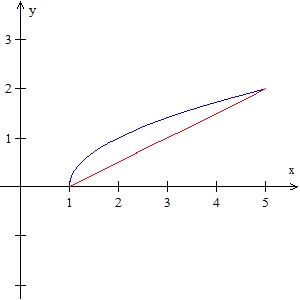
Consider the region bound by the graphs of f\left( x \right)=\sqrt{x-1} and g\left( x \right)=\tfrac{1}{2}\left( x-1 \right) from x = 1 to x = 5.

Begin by opening a Winplot 2D graphing window, graphing the curves, and adjusting the window to a good scale. Use the box where the equations are entered (Equa > 1.Explicit) check “lock interval,” and enter the “low x” and “high x” values (1 and 5 respectively) to stop the graphs where they intersect. Click “ok” to see the graphs.

Solids 2 A

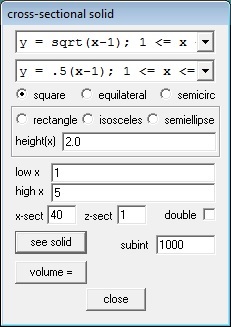
On the navigation bar, click on “Two” and then “Sections.” You should see a window like this:

Solids 2 B

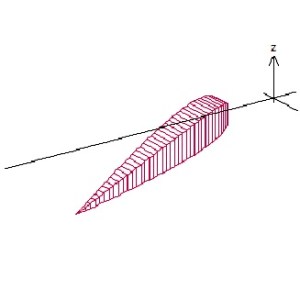
The top two drop-down boxes at the top allow you to choose which curves to work with, and since we have only two they should already be selected. Then click on the cross-section shape you want – square, equilateral triangle, or semicircle. The box below that allows other shapes where the height may be set (the height(x) may be  a number or a function of x). Set the “low x” and “high x” to the left and right sides of the region. Then click “see solid” and you will see the solid in a new window.

Click on the new 3D window and then type Ctrl+A to show the axes. Rotate the image by using the 4 arrow keys, and zoom in and out with the Page Up and Page Down keys.

Solids 2 CNow let’s get fancy. Close the 3D window and return to the cross-section box shown above. Change the “high x” to 5@B (you may use any almost letter except x, y, or z). Then click “see solid.” Next, in the 3D Window click Anim > Individual > B. This will give you a slider. Slide the slider from 1 to 5 and you will see the solid grow and see the square cross-sections. (The video uses the “autocyc” button – use S to slow the animation, F to speed it up and Q to quit.)
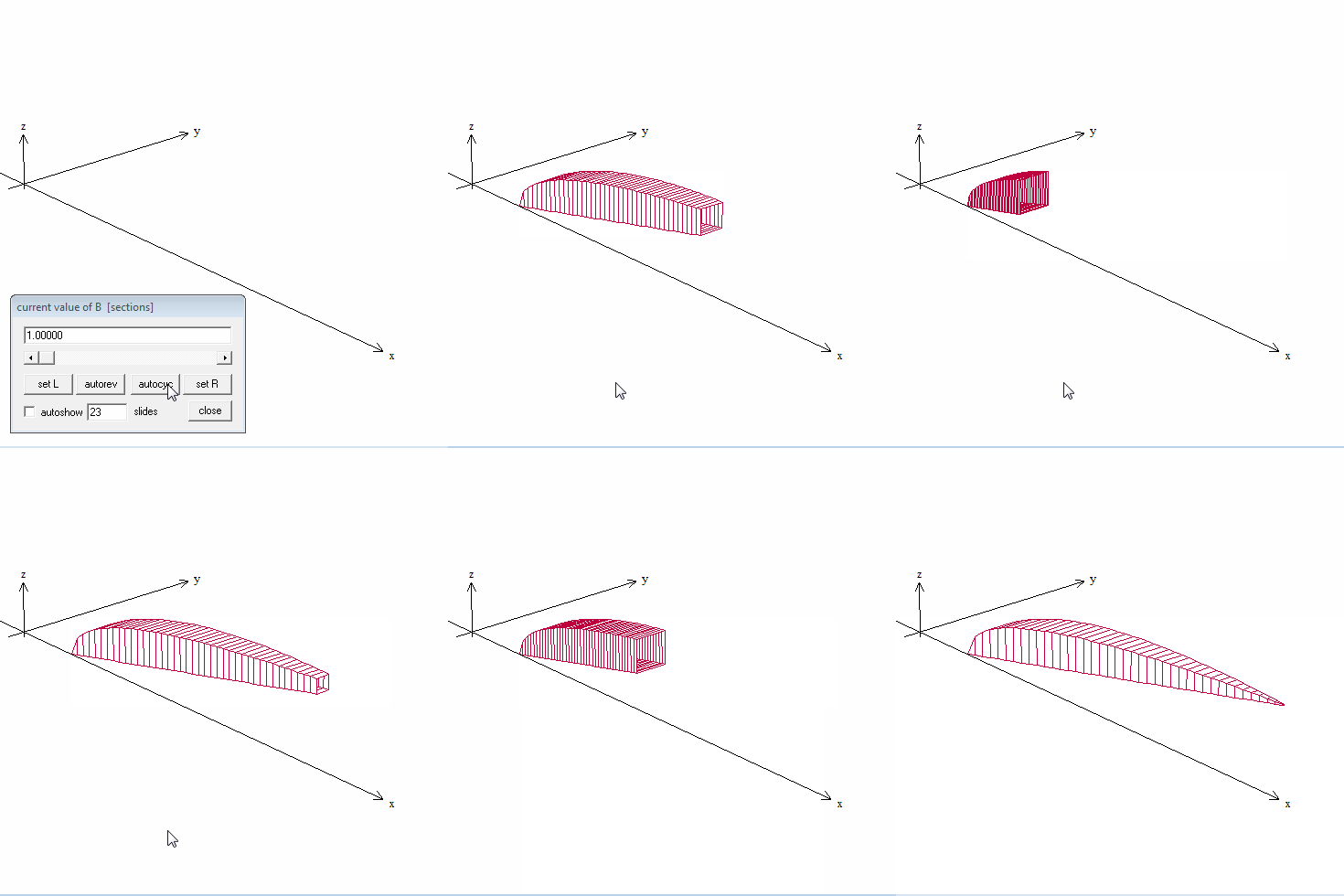
Square x-sections

Use File > Save As… to save the image. It will save with the extension .wp3 and you will lose the original 2D graphs. The animation buttons will still work when you open it again.

Solids of Revolution.

Solids of rotation are done in a similar way. We will revolve the same curves around the horizontal line y = –1.  Enter the curves as above and click on One > Revolve Surface.  Curves are revolved one at a time, so choose the first curve from the drop-down box. Choose the axis the figure is to be rotated around by entering the values for a, b, and c in ax + by = c, or clicking on one of the axis buttons.  For the “arc start” and “arc stop” values use the left and right ends of the region. The “angle start” and “angle stop” values are the default, 0 and 2pi (entered as “2pi”). Again we have made this last value 2pi@A so that we can animate the graph.

Solids 2 D

Click “see surface” to see the revolved surface.  As before, use the 4 arrow keys and the Page Up and Page Down keys to adjust the image, and Ctrl+A to show the axes.

Surfaces are revolved one at a time so return to the “surface of revolution” window and use the drop-down box to choose the next curve. Leave all the other values the same. Clicking “see surface” will graph the second curve with the first and show the solid figure. Note that the surfaces are graphed in the same color as the original 2D graphs.

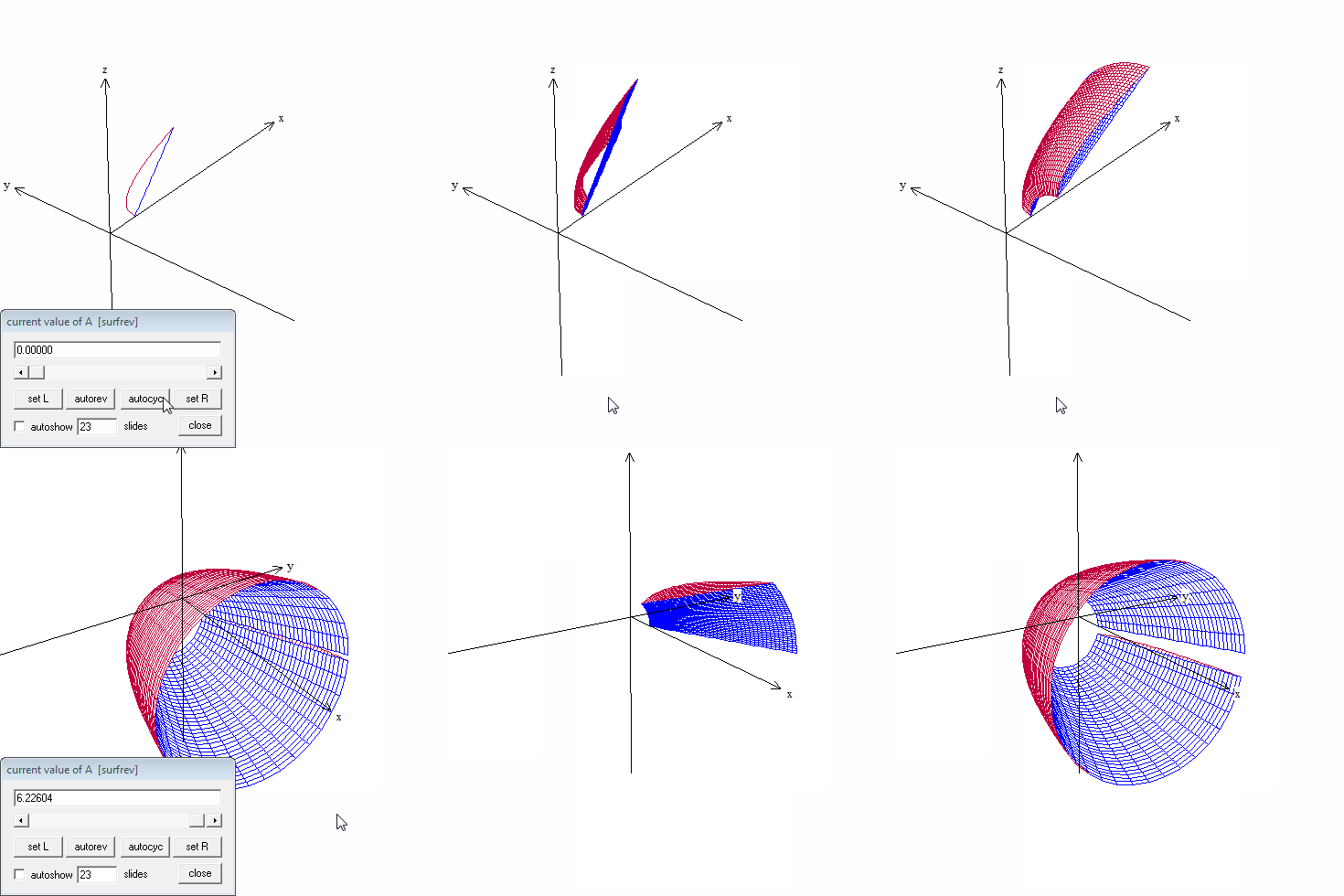
Solid rotation

Use the slider or autorev or autocyc buttons to watch the curves revolve. (Remember to type “F” to speed up the motion. “S” to slow it down, and “Q” to quit.)

The next posts will show how to see the disks, washers, and shells, and animate them along with the surfaces.

Visualizing Solid Figures 1

The shape of various solids of rotation and solids with regular cross-sections of which beginning calculus students are required to find the volume are often difficult to visualize. This post and the next two will discuss some of the ways you can help your students become familiar with these shapes. Teachers often use these as projects for students to get some hands-on familiarity with the figures. In fact, it is one of the few places where a useful project can be assigned.

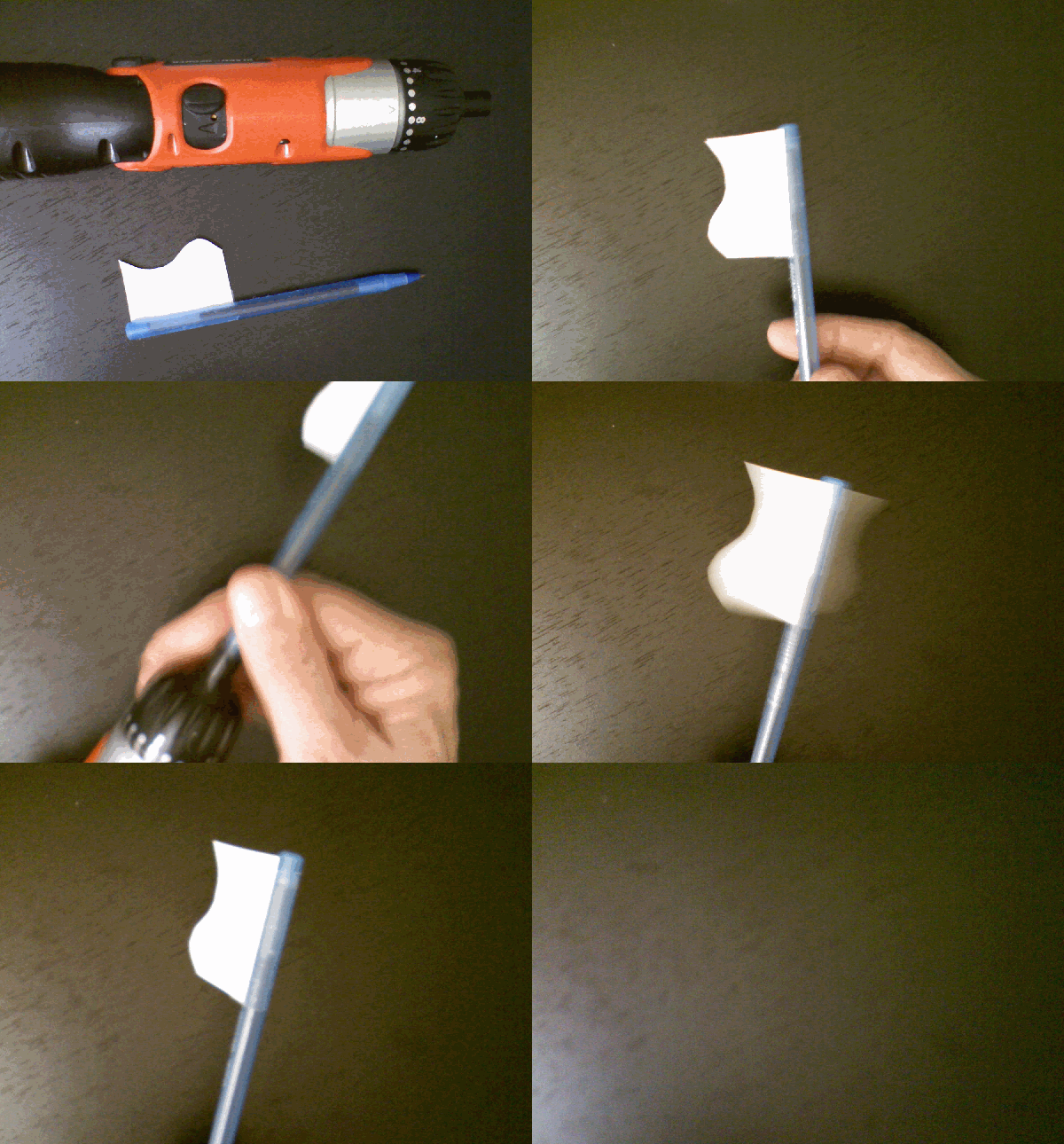
 Actually, rotate a region:

Begin by drawing the region to be revolved (from the curve to the line of rotation) on paper and cut it out. Tape the region along the line to a pencil, pen, or dowel. Roll the dowel back and forth between your hands or, as shown in the video below, with a small electric drill or screwdriver. You can get a rough idea of the shape.

Solid 4

Go to a wedding:

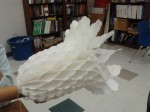
Decorations for weddings and other festive events are made from paper and fold flat. When opened you get a solid of rotation.

Measure a volume:

Take a solid fruit (like a banana), or a vegetable (like a cucumber, or carrot) and find its volume by cutting it into “coin” shaped pieces. Multiply the thickness by the area of the circular ends of each piece and then add them to find the volume.

For more of a challenge use a loaf of sliced bread (here you will need a way to calculate the area of the non-circular ends – inscribed rectangles perhaps). You could also approximate the volume of a tree trunk by measuring the circumference at regular distances along the trunk.

Build a model:

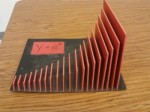
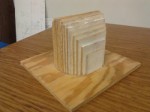
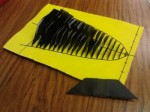
This method can be used for solids or rotation and is especially good for solids with regular cross-sections.  It is also a good project for a student or group of students.

  1. Carefully graph the region using a somewhat larger than normal scale.
  2. Draw lines at 1/8 to ¼ inch intervals across the region perpendicular to the appropriate axis.
  3. Carefully measure or calculate the length of each of these lines. Use this for the appropriate dimension for the question. For example, this may be the side of the square cross-section, or the diameter of a semi-circular section.
  4. Use the dimension to draw a series of squares, semi-circles, or whatever from cardboard, plywood, or foam board.
  5. Cut these out and assemble them on the original region you graphed to approximate the solid figure. Tape or glue them in place.
  6. Extra: Calculate the area of each piece and multiply it by the thickness (or the distance between pieces) and see how closely this comes to the calculated volume.

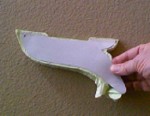
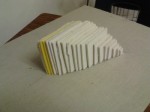
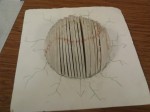
These pictures are of models made by students of Mrs. Dixie Ross at Pflugerville (Texas) High School. Students received more points if they recycled materials.Thank you Dixie!

Variations on a Theme by ETS

Experienced AP calculus teacher use as many released exam questions during the year as they can. They are good questions and using them gets the students used to the AP style and format.  They can be used “as is”, but many are so rich that they can be tweaked to test other concepts and to make the students think wider and deeper.  

Below is a multiple-choice question from the 2008 AB calculus exam, question 9.

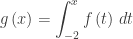
 2008 mc9The graph of the piecewise linear function f  is shown in the figure above. If \displaystyle g\left( x \right)=\int_{-2}^{x}{f\left( t \right)\,dt}, which of the following values is the greatest?

(A)  g(-3)         (B)  g(-2)         (C)  g(0)         (D)  g(1)         (E)  g(2)

I am now going to suggest some ways to tweak this question to bring out other ideas. Here are my suggestions. Some could be multiple-choice others simple short constructed response questions. A few of these questions, such as 3 and 4, ask the same thing in different ways.

      1. Require students to show work or justify their answer even on multiple-choice questions. So for this question they should write, “The answer is (D) g(1) since x = 1 is the only place where {g}'\left( x \right)=f\left( x \right) changes from positive to negative.” 
      2. Ask, “Which of the following values is the least?” (Same choices)
      3. Find the five values listed.
      4. Put the five values in order from smallest to largest.
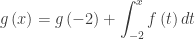
      5. If \displaystyle g\left( x \right)=g\left( -2 \right)+\int_{-2}^{x}{f\left( t \right)dt} and the maximum value of g is 7, what is the minimum value?
      6. If \displaystyle g\left( x \right)=g\left( -2 \right)+\int_{-2}^{x}{f\left( t \right)dt} and the minimum value of g is 7, what is the maximum value?
      7. Pick any number (not just an integers) in the interval [–3, 2] to be a and change the stem to read, “If \displaystyle g\left( x \right)=g\left( a \right)+\int_{a}^{x}{f\left( t \right)dt} ….” And then ask any of the questions above – some answers will be different, some will be the same. Discussing which will not change and why makes a worthwhile discussion.
      8. Change the equation in the stem to \displaystyle g\left( x \right)=3x+\int_{-2}^{x}{f\left( t \right)dt} and ask the questions above. Again most of the answers will change. Also this question and the next start looking like some free-response questions. Compare them with 2011 AB 4 and 2010 AB 5(c)
      9. Change the equation in the stem to \displaystyle g\left( x \right)=-\tfrac{3}{2}x+\int_{-2}^{x}{f\left( t \right)dt} and ask the questions above. This time most of the answers will change.
      10. Change the graph and ask the same questions.

Not all questions offer as many variations as this one. For some about all you can do is use them “as is” or just change the numbers.

Any other adaptations you can think of?

What is your favorite question for tweaking?

 Math in the News Combinatorics and UPS

Revised: August 24, 2014

What’s a Mean Old Average Anyway?

Students often confuse the several concepts that have the word “average” or “mean” in their title. This may be partly because not just the names, but the formulas associated with each are very similar, but I think the main reason may be that they are keying in on the word “average” rather than the full name.

Here are the three items. We will assume that the function f is continuous on the closed interval [a, b] and differentiable on the open interval (a, b):

1.  The average rate of change of a function over the interval is simply the slope of the line from one endpoint of the graph to the other.

 \displaystyle \frac{f\left( b \right)-f\left( a \right)}{b-a}

2. The mean (or average) value theorem say that somewhere in the open interval (a, b) there is a number c such that the derivative (slope) at x = c is equal to the average rate of change over the interval.

\displaystyle {f}'\left( c \right)=\frac{f\left( b \right)-f\left( a \right)}{b-a}

3. The average value of a function is literally the average of all the y-coordinates on the interval. It is the vertical side of a rectangle whose base extends on the x-axis from x = a to x =b and whose area is the same as the area between the graph and the x-axis and the function over the same interval.

\displaystyle \frac{\int_{a}^{b}{f\left( x \right)dx}}{b-a}

Notice that when you evaluate the integral, the result looks very much like the ones above. This formula is also called the mean value theorem for integrals or the integral form of the mean value theorem. No wonder people get confused.

The three are closely related. Consider a position-velocity-acceleration situation. The average rate of change of position (#1 above) is the average value of the velocity (#3) and somewhere the velocity must equal this number (#2). Similarly, the average rate of change of velocity (#1) is the average acceleration (#3) and somewhere in the interval the acceleration (derivative of velocity) must equal this number (#2).

These ideas are tested on the AP calculus exams sometimes in the same question. See for example 2004 AB 1 parts c and d.

So, help your students concentrate on the entire name of the concepts, not just the “average” part.


The Ubiquitous Particle Motion Question

On Friday April 19, 2013 I am giving a presentation at the NCTM Annual Meeting entitled

The Ubiquitous Particle Motion Question on the AP Calculus Exams.

If you are in Denver please join me at  9:30 AM – 10:30 AM, Convention Center, Room: Mile High 2 C

Here are the slides and handout for session.

The Ubiquitous Particle Motion Question (.pdf)  velocity game corrected answers 4-23-2013

Motion Problems NCTM (.pptx)